Accessories
Balancing Speed and Power: How USB Evolution Shaped High-Durability Fast Charging Cables
2026-06-23

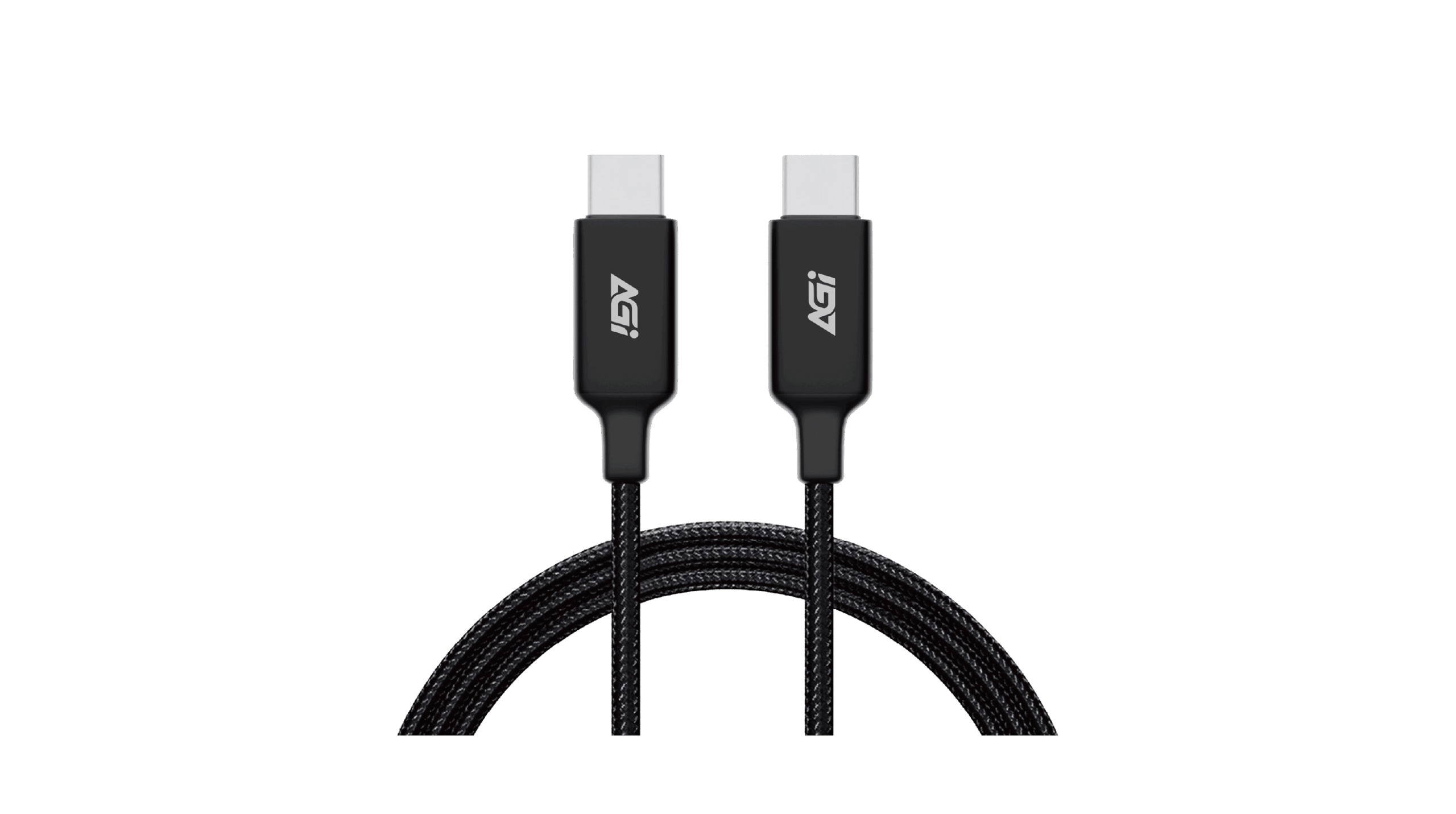
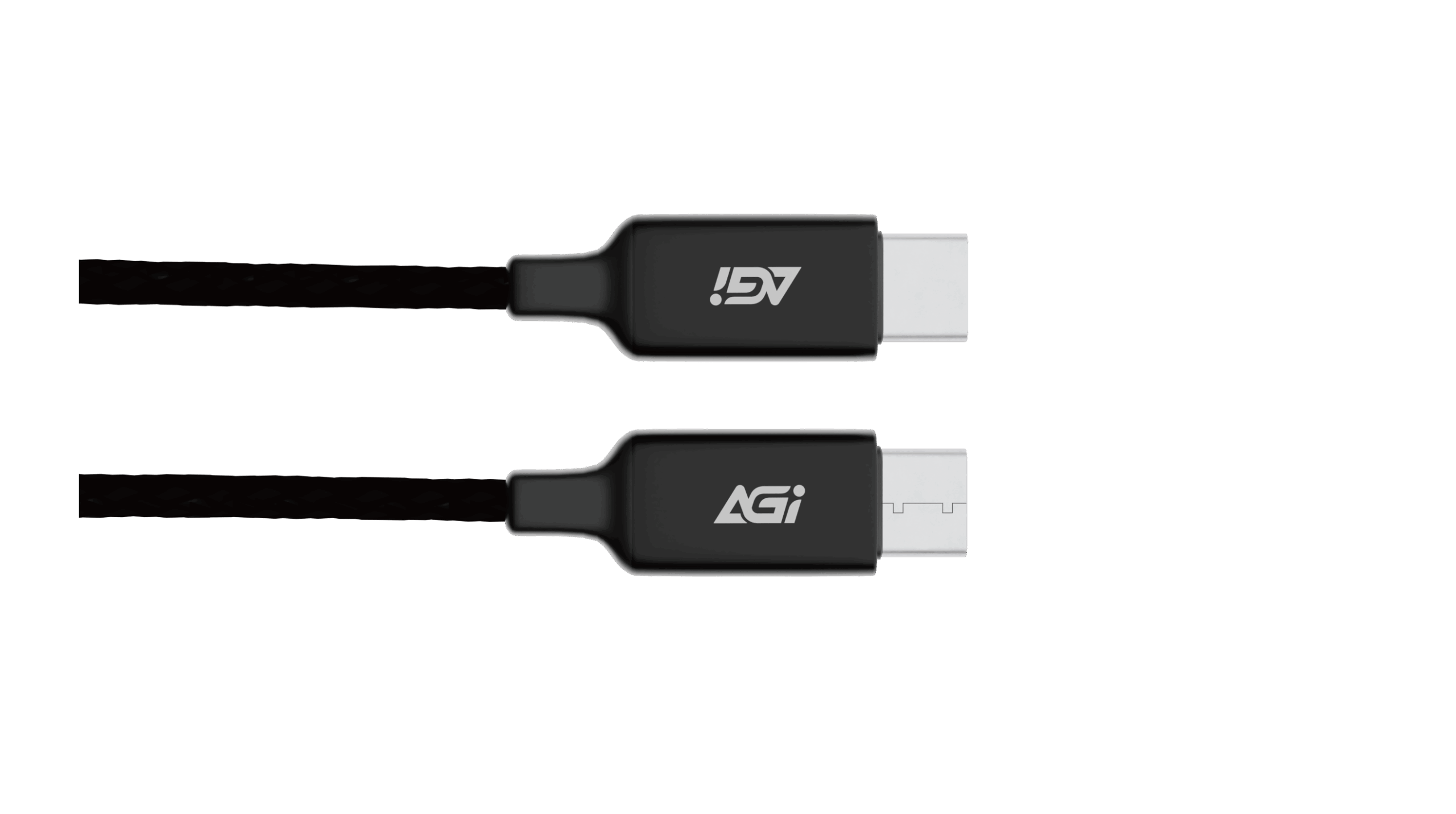
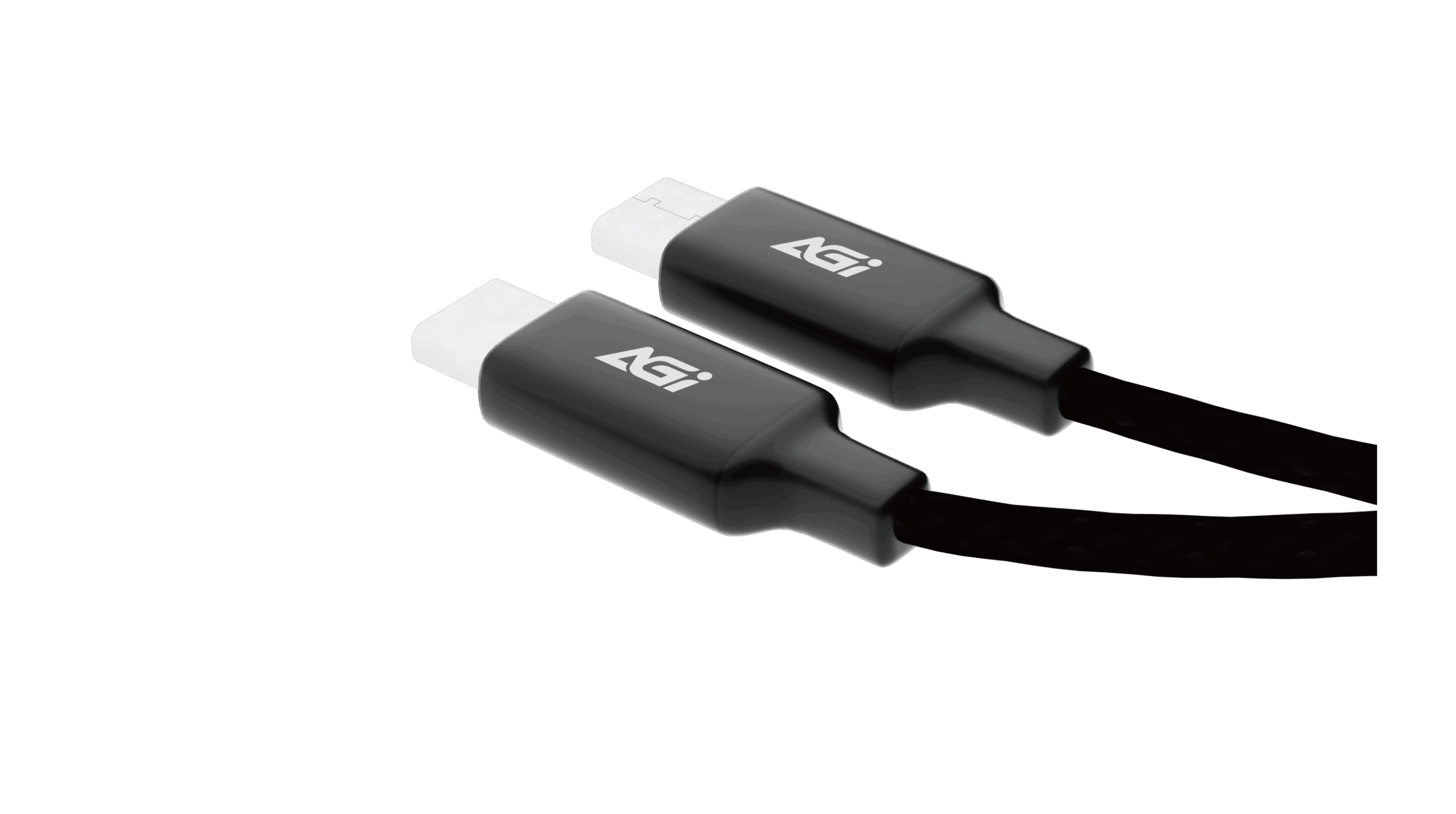
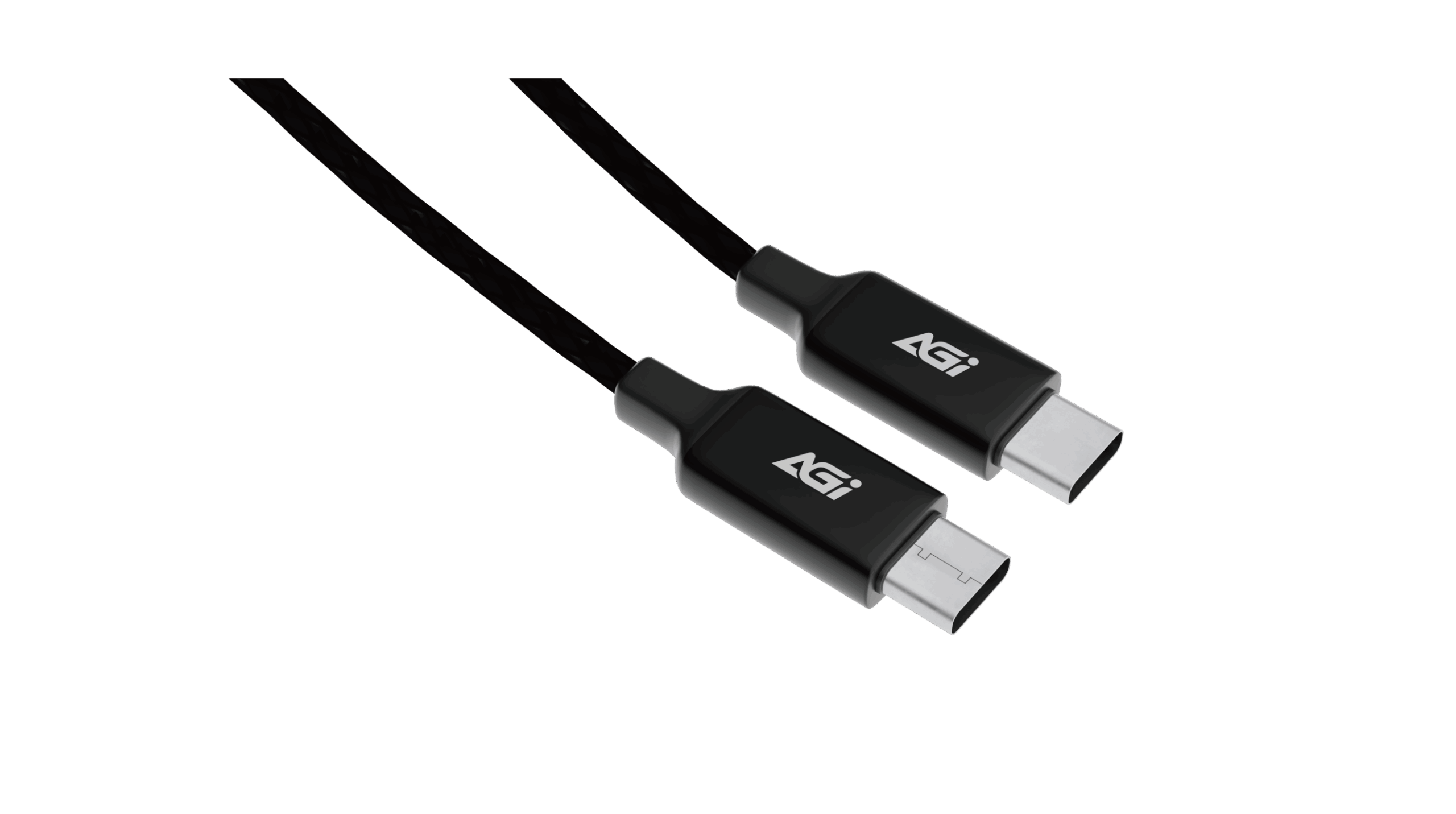
CA138CC USB-C to USB-C Cable
KEY FEATURES

Quick Charge

Durable Braided Design

1m

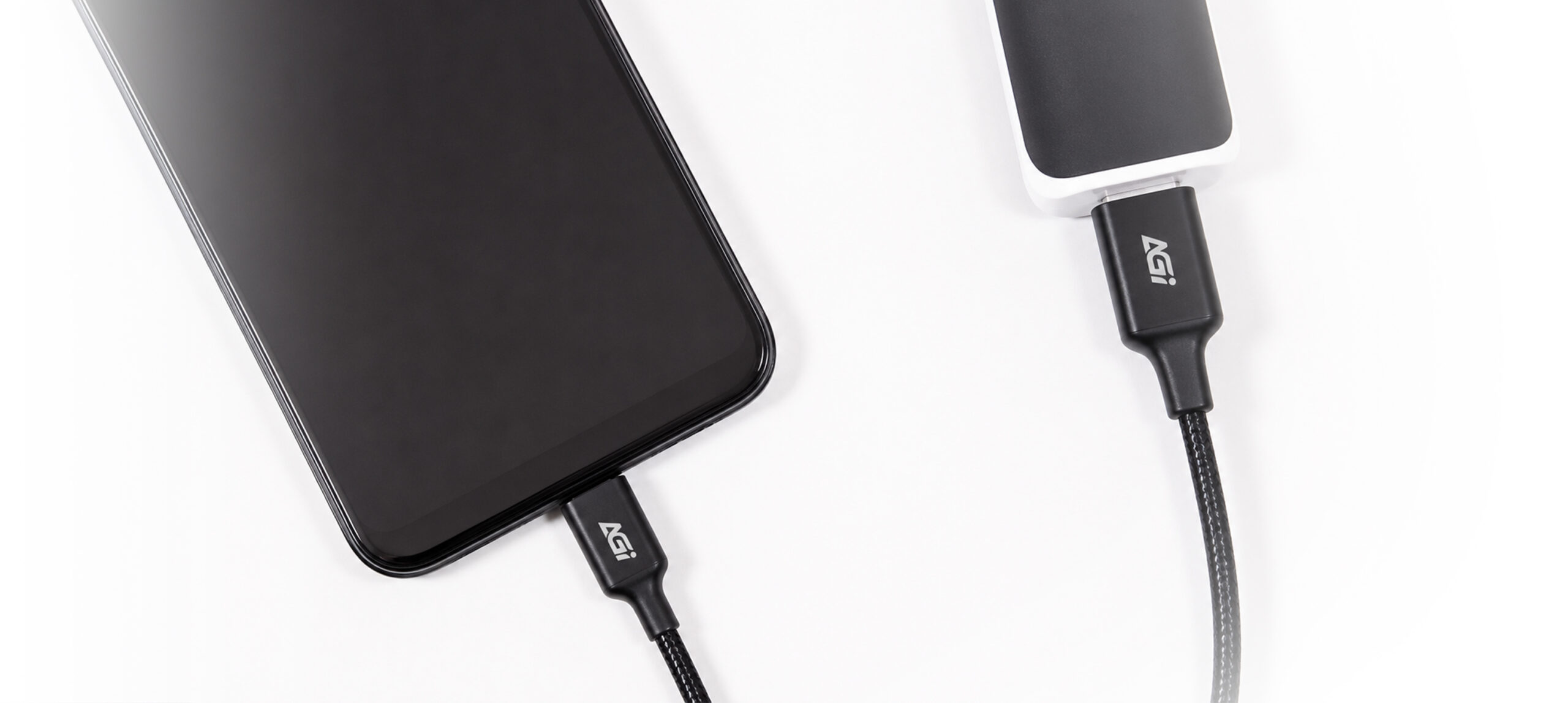
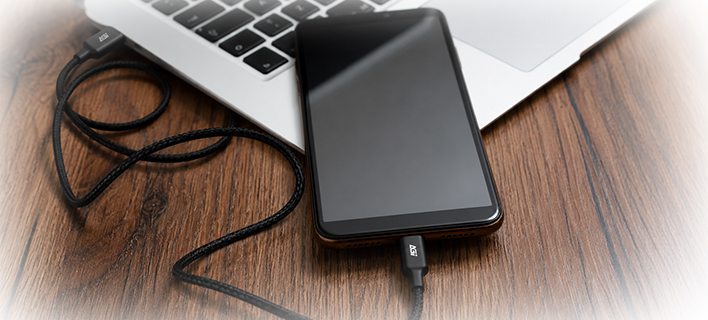
Model
CA138CC
Length
1M
Max. Output Power
100W
Max. Voltage
20V
Max. Current
5A
Surface
USB 2.0
Transferring Speed
480 Mbps
Warranty
1 Year
Please try the following steps to resolve the issue:
Step 1. Turn off your computer and disconnect all other storage drives, leaving only the target SSD connected.
Step 2. Enter your motherboard's BIOS, restore the default settings, and ensure that both AHCI and UEFI modes are enabled. Save the configuration and exit.
Step 3. Boot into the OS installer. When you reach the drive selection screen, delete all existing partitions on the target SSD, and then proceed with the installation.
Windows 11, Windows 10, and modern Linux distributions include native support for PCIe NVMe drives and can be installed directly. Please ensure your motherboard's BIOS is updated to the latest version and configured to UEFI mode. If the SSD is not detected during the Windows installation process, you may need to download and load the specific storage controller drivers (such as Intel VMD/RST) provided by your motherboard or laptop manufacturer. For further assistance, please refer to the following link or contact Microsoft: https://support.microsoft.com/
This is normal. The discrepancy is due to system calculations and allocation of space for firmware, software, and data management, which help enhance performance and prolong lifespan.
Please check the following:
1. Hardware Connection: Ensure that the data cable, power cable, and motherboard slot are properly and securely connected.
2. System Initialization: Right-click the Start menu > select “Disk Management” > locate the unallocated SSD > right-click it and select “New Simple Volume” to initialize the drive.
Please refer to the installation guide provided. If product damage, installation errors (e.g., misalignment or poor adhesion), or other issues occur, do not forcibly disassemble the unit. Doing so may cause physical damage. Contact customer service and return the product for proper handling.
Yes, but the data transfer speed will be limited by the motherboard and will not reach SATA 6 Gb/s performance.
This is normal. The difference in capacity is due to the different calculation methods used by computer operating systems, along with a portion of the space being reserved for firmware, software, and data management. This reserved space helps enhance the solid-state drive's performance and extend its lifespan.
Actual performance may vary depending on your system hardware, software environment, and whether the SSD is used as a boot drive (with an OS installed). These variations are completely normal.
2026-06-23