Share
SSD vs. HDD Comparison-Why Upgrading to an SSD Makes Your PC So Fast: The Guide to Leaving Lag Behind
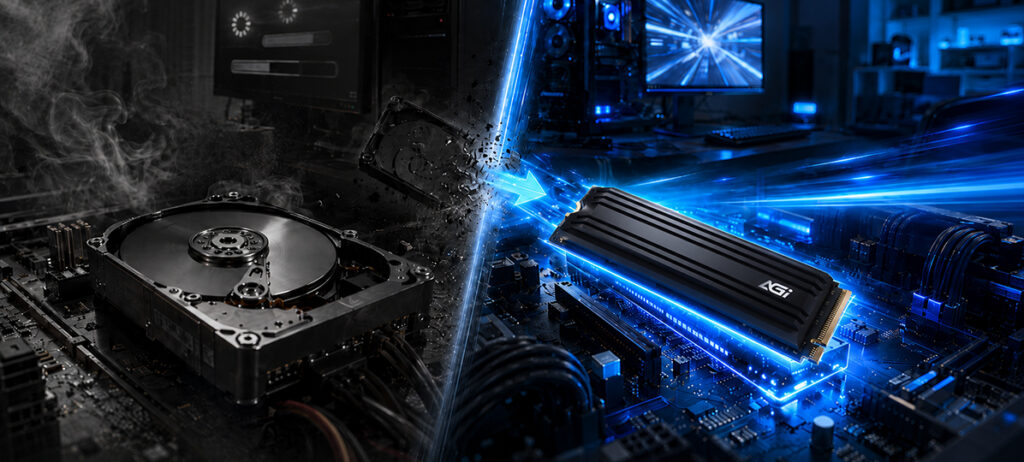
If your computer has been in use for several years, you might be running into these issues:
- Long boot times
- Apps lagging or freezing when opening
Slow file loading and reading speeds Many people assume their computer is just getting old and needs to be replaced. In reality, simply upgrading to an SSD (Solid-State Drive) can drastically improve performance. For most PCs, an SSD upgrade is the most noticeable and cost-effective way to boost speed. In this article, we’ll dive into the differences between an SSD and an HDD, the key benefits of an SSD, and how to choose the perfect one for your needs.
1. SSD vs. HDD: Why Is Your Computer Slow? It All Starts with Storage
HDD (Hard Disk Drive) – Traditional Hard Drive
An HDD is a storage device that accesses data using spinning magnetic platters and a moving read/write head. When the computer needs to read data, the platter must spin to the correct position for the head to access it, resulting in slower speeds. Because HDDs contain mechanical parts and spinning components, long-term wear and tear can also impact their stability over time.
SSD (Solid-State Drive)An SSD uses NAND Flash memory to store data and contains no moving mechanical parts. Data is read electronically, allowing it to deliver speeds far superior to traditional hard drives. While a standard SATA SSD can reach speeds of around 500 MB/s, an NVMe SSD can push several thousand MB/s—vastly outperforming an HDD’s typical read speed of about 50 to 200 MB/s. Consequently, SSDs have become the standard storage solution for modern PCs, laptops, and gaming consoles.
2.Why Everyone is Switching to SSDs: A Complete Speed and Performance Upgrade
1. Dramatic Boost in System Speed The most immediate benefit is a massive improvement in boot times and app launch speeds:
HDD Boot Time: Around 30–60 seconds
SSD Boot Time: Around 10–20 seconds This means your computer can boot up almost instantly, and apps load in seconds, dramatically cutting down your waiting time.
2. Smoother Multitasking With incredibly low access latency, an SSD can handle multiple read and write tasks simultaneously, such as:
Downloading files
Opening multiple programs
Running background system updates all at the same time
In other words, for digital professionals who constantly juggle heavy workloads, presentations, or multimedia applications, an SSD guarantees a much smoother, stutter-free experience.
3.Budget-Friendly, Painless Upgrades: High-Value SSD Solutions that Won’t Break the Bank
Here is the continuation of the English translation, seamlessly adding the description for Option 3 based on standard tech specs to complete your thought:
Although SSD prices have dropped significantly in recent years, the cost per GB is still slightly higher than that of an HDD. If you are working with a limited budget, you can consider the following upgrade strategies:
Option 1: The SSD + HDD Hybrid Setup This is a very common configuration for many users:
- SSD: Used to install the operating system and frequently used software.
- HDD: Used to store videos, photos, and backup data. This setup allows you to enjoy the blazing speed of an SSD while retaining the massive storage capacity of an HDD.
Option 2: Upgrade the System Drive First If your computer originally came with an HDD, you can upgrade your system drive with an SSD. This single change alone is enough to make your computer feel like a brand-new machine.
Option 3: Choose a SATA SSD SSDs generally come in two common types:
| Type | Speed | Price |
| SATA SSD | Approx. 500 MB/s | Lower price |
| NVMe SSD | Up to thousand MB/s | Higher price |
If you are on a tight budget, a SATA SSD can already deliver a very noticeable boost in performance.
For digital creators or gamers with a flexible budget, a PCIe SSD is definitely the top choice. Delivering read and write speeds of over 5000 MB/s, it drastically cuts down loading times and rendering workflows. Whether you are working on 4K/8K high-definition video post-production, handling raw footage, or a gamer who loves AAA titles, it will significantly elevate your overall creative efficiency and gaming experience.
4.How to Choose an SSD?
With so many SSDs on the market, the best way to narrow down your choices is to look at these key factors:
1. Capacity
Recommended capacity based on different use cases:
| Use Case | Recommended Capacity |
| Basic Tasks / Web Browsing | 512GB |
| Gaming / Content Creation | 1TB |
| Professional Workloads | 2TB or more |
Higher-capacity solid-state drives typically deliver superior write performance and enhanced endurance (lifespan).
2. Interface Technology The prevailing architecture for modern solid-state drives incorporates the following interface standards:
- SATA: Utilizes the legacy Serial ATA protocol, offering high backward compatibility and a cost-effective solution for standard deployments.
- PCIe NVMe: Leverages the Non-Volatile Memory Express protocol over the high-speed PCI Express bus, yielding vastly superior throughput and reduced latency.
System builders must verify motherboard hardware compatibility and available slot configurations prior to procurement.
Read/Write Throughput
Performance metrics vary significantly across different solid-state drive architectures:
| SSD Type | Sequential Read Speed |
| SATA SSD | Approximately 500 MB/s |
| PCIe Gen3 NVMe | Approximately 3000 MB/s |
| PCIe Gen4 NVMe | Approximately 7000 MB/s |
Elevated throughput directly correlates to minimized data latency and accelerated load times.
SSD Selection Matrix
| Use Case | Recommended Capacity | Optimal Interface Type | Target Read/Write Speed | Use Cases |
| General Productivity / Web Browsing | 500GB | SATA SSD or PCIe Gen3 NVMe | 500 MB/s – 3,000 MB/s | Office suites, web browsing, and media consumption. |
| Gaming / Multimedia | 1TB | PCIe Gen3 / Gen4 NVMe | 3,000MB/s – 7,000MB/s | Game deployment, video editing, and large file transfers. |
| Video Production / Enterprise Creation | 2TB 以上 | PCIe Gen4 / Gen5 NVMe | 7,000MB/s 以上 | 4K/8K video production, rendering, and professional workstations. |
4. Brand and Warranty
To ensure maximum data integrity and product reliability, select manufacturers that provide:
-Rigorous quality control (QC) standards
-Extended warranty periods
-Stable firmware architecture
5.Conclusion: Revitalize Your System with an SSD Upgrade
For the vast majority of systems, upgrading to an SSD is the most cost-effective method to boost overall performance. Compared to a traditional HDD, an SSD delivers:
- Accelerated boot-up times
- A significantly smoother application experience
- Reduced power consumption and silent operation
If your computer is still relying on a legacy HDD, an SSD upgrade is highly recommended. AGI’s SSD product lineup utilizes high-quality NAND Flash and a stable controller architecture, offering a wide array of capacity and specification configurations. Whether for general daily tasks, gaming and entertainment, or intensive creative workloads, AGI delivers stable and dependable storage performance. Whether you are upgrading an older PC or configuring a high-speed storage environment for a brand-new system, selecting the appropriate SSD will eliminate system lag and elevate your entire user experience.
Upgrade to an SSD today and restore peak speed and efficiency to your computer.