Supreme Pro TF138 microSD記憶卡
極速賽道.專業首選
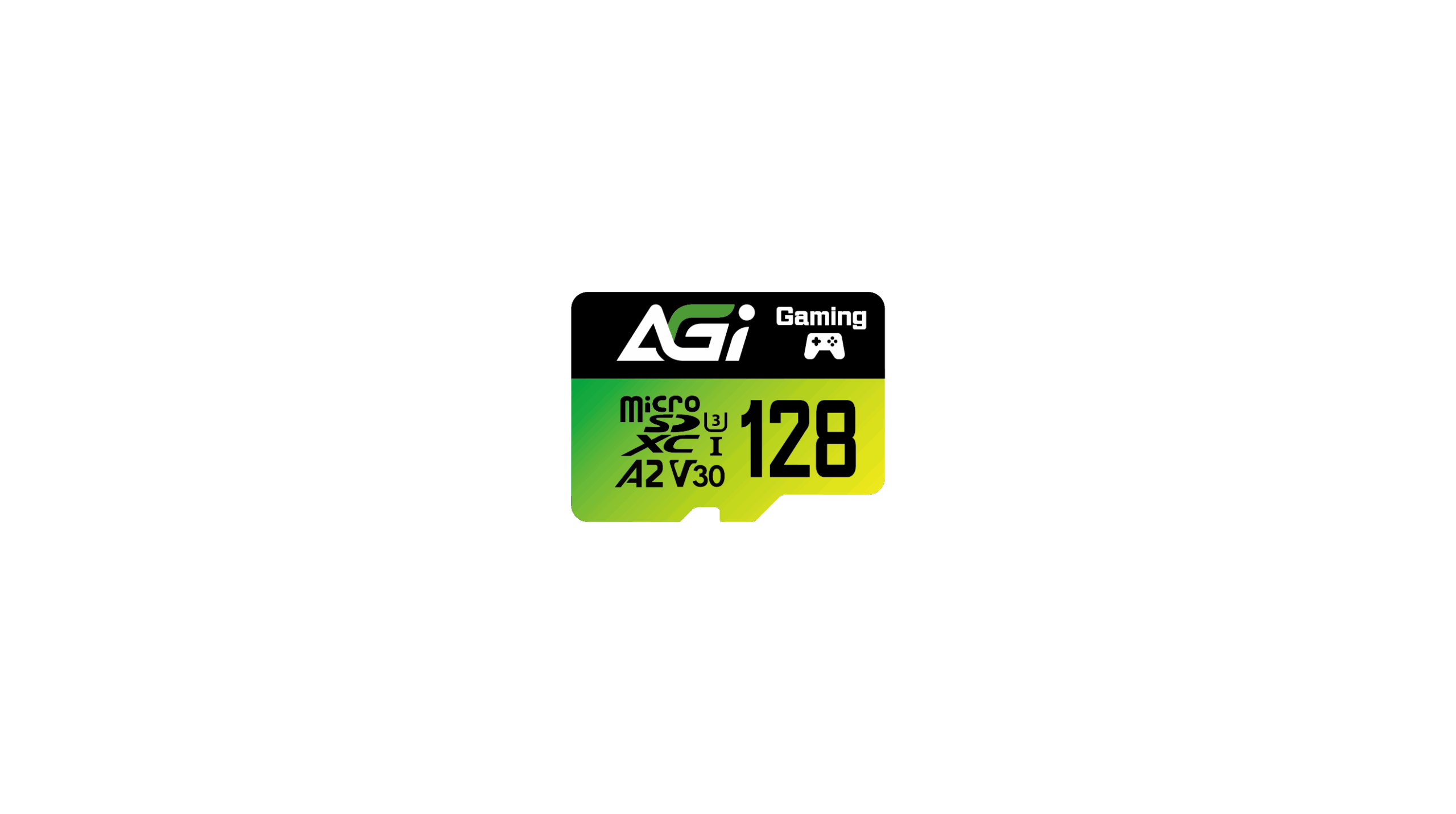
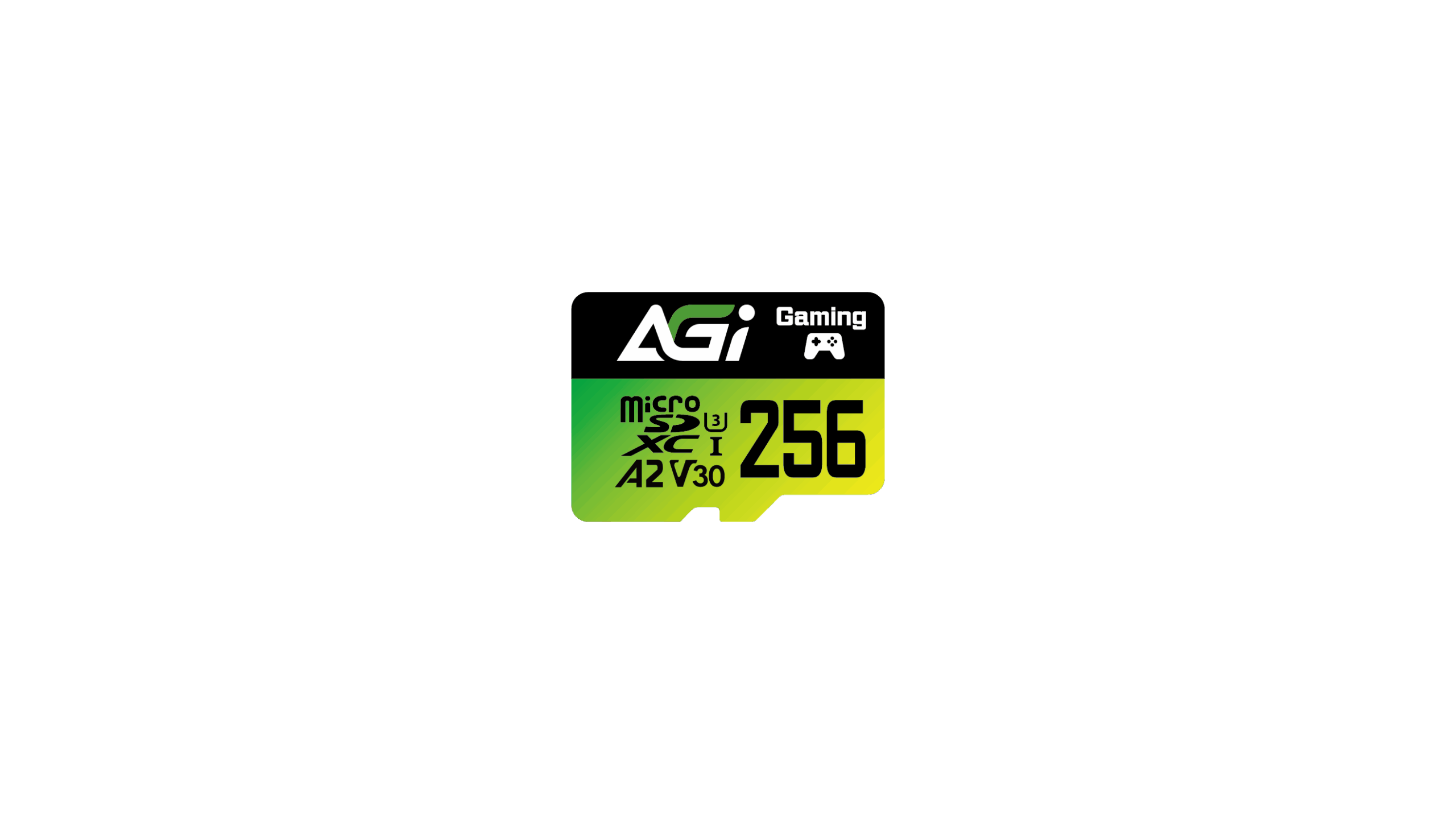
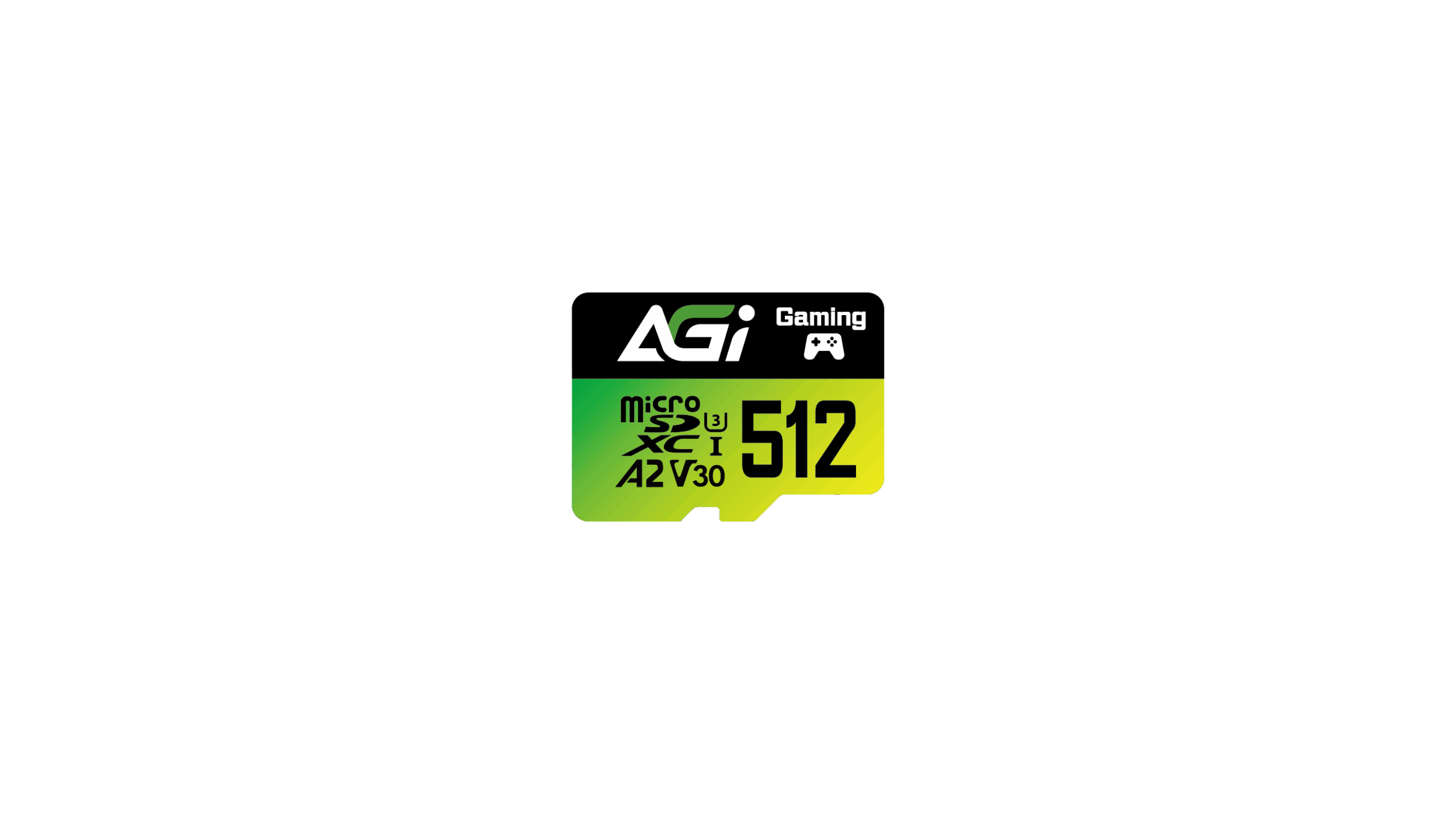
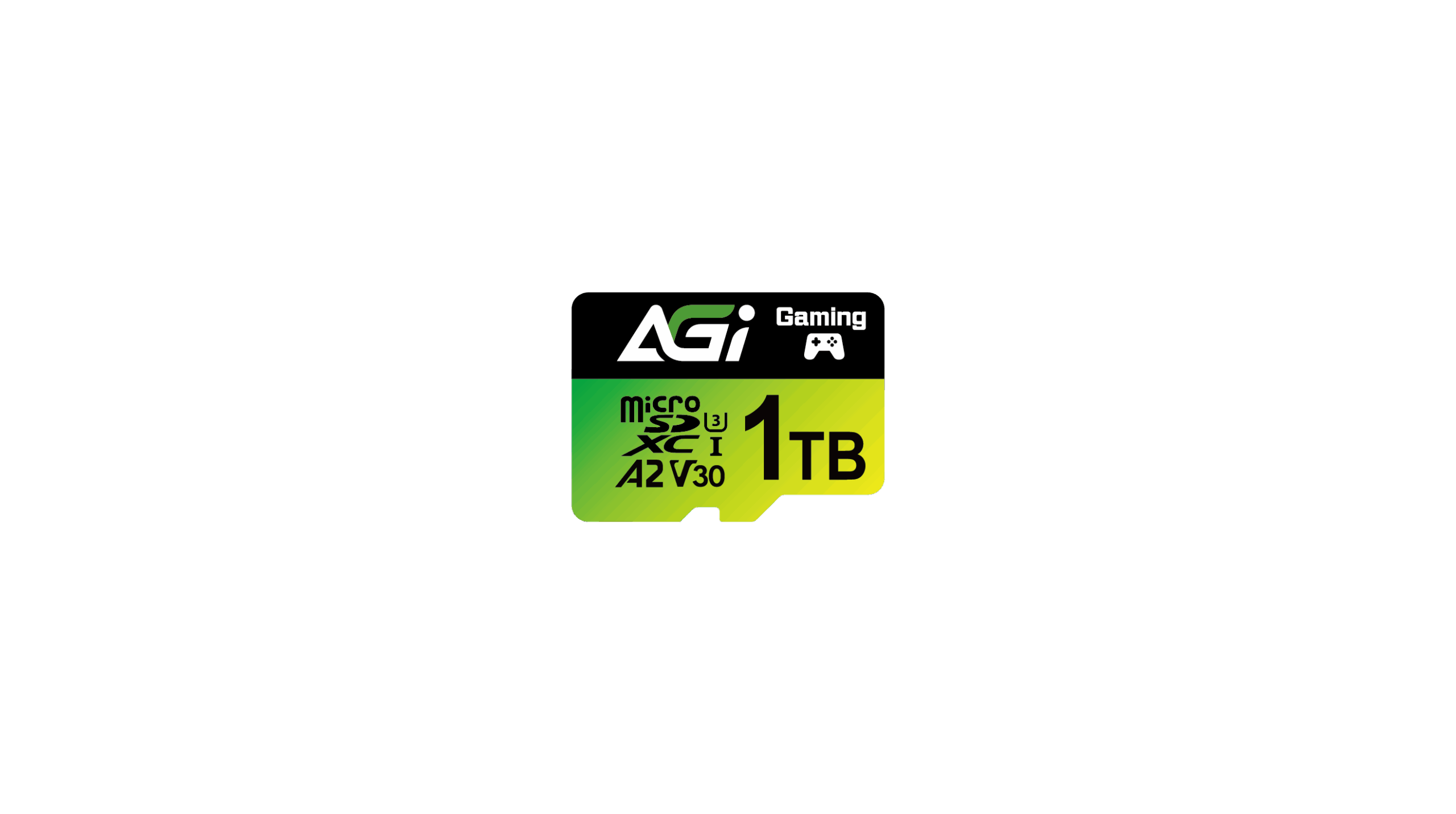
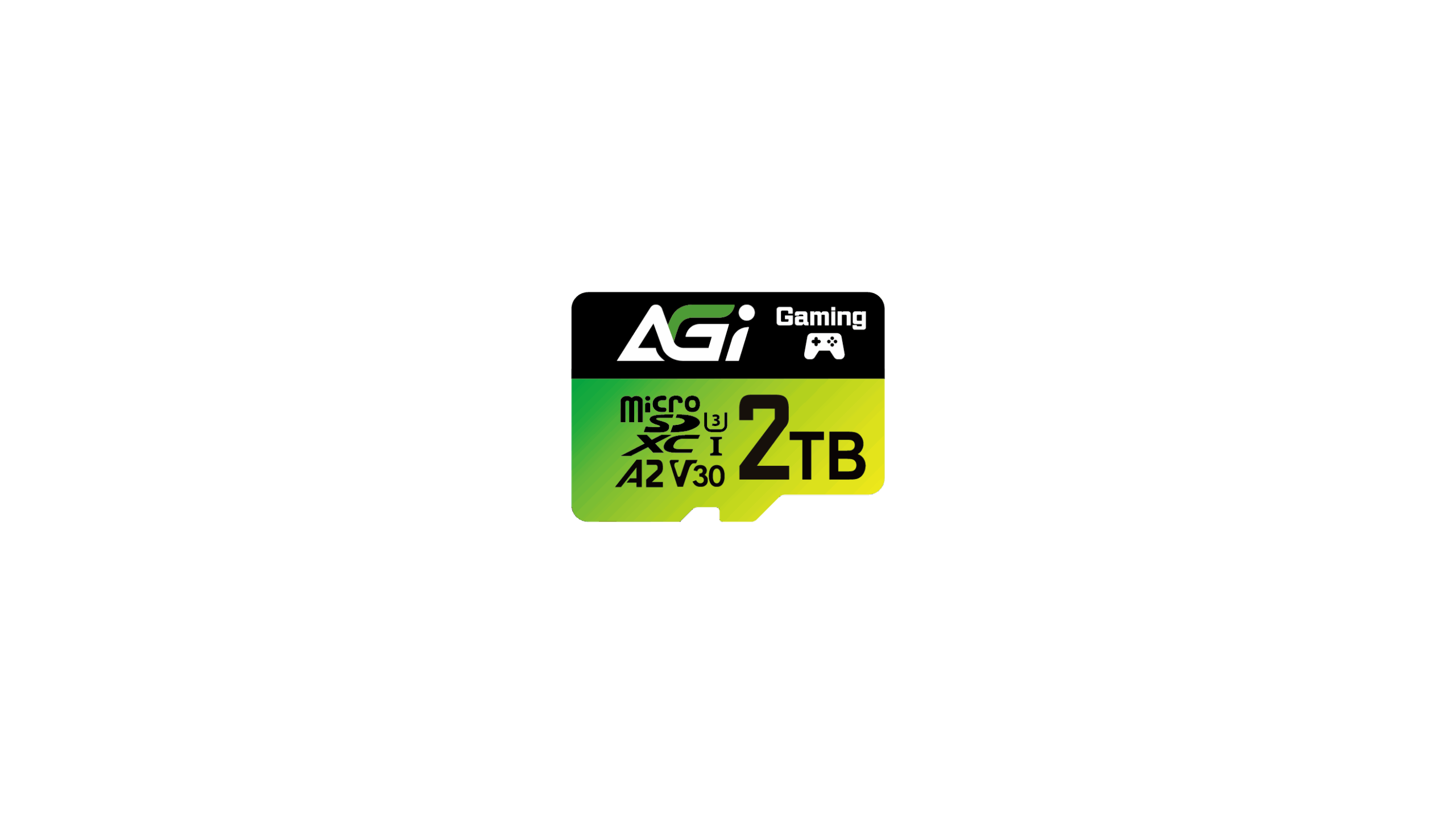
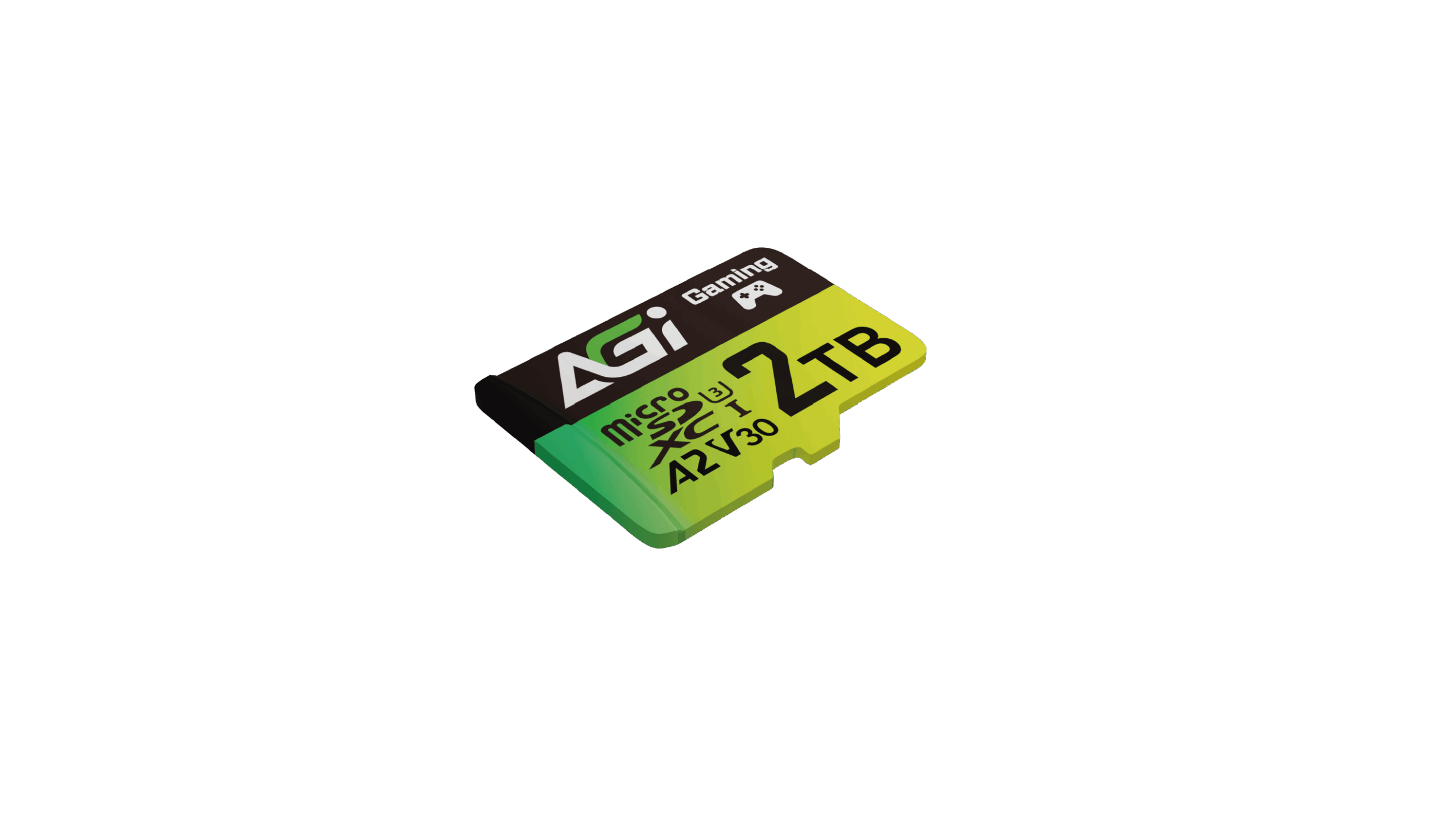
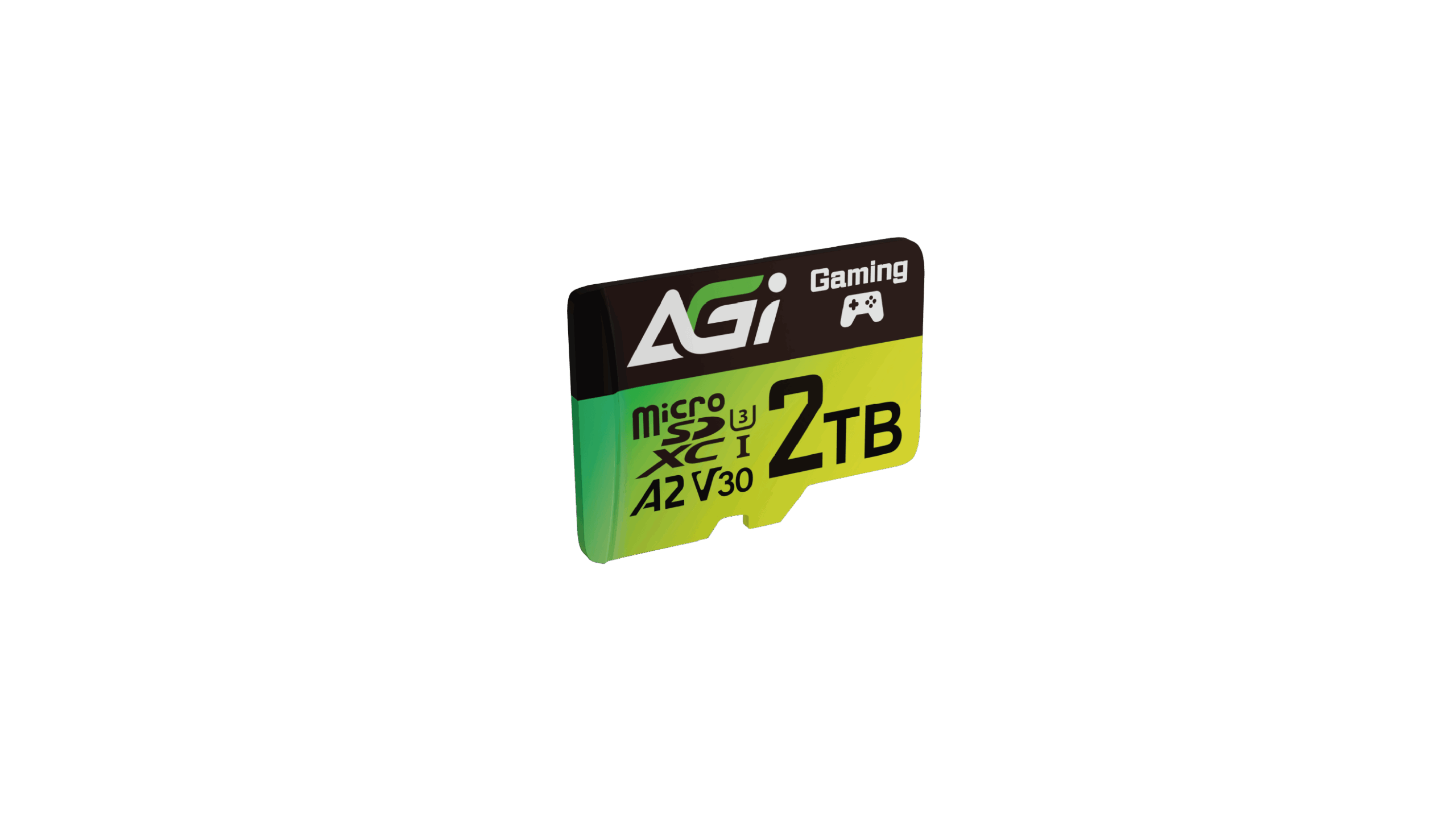
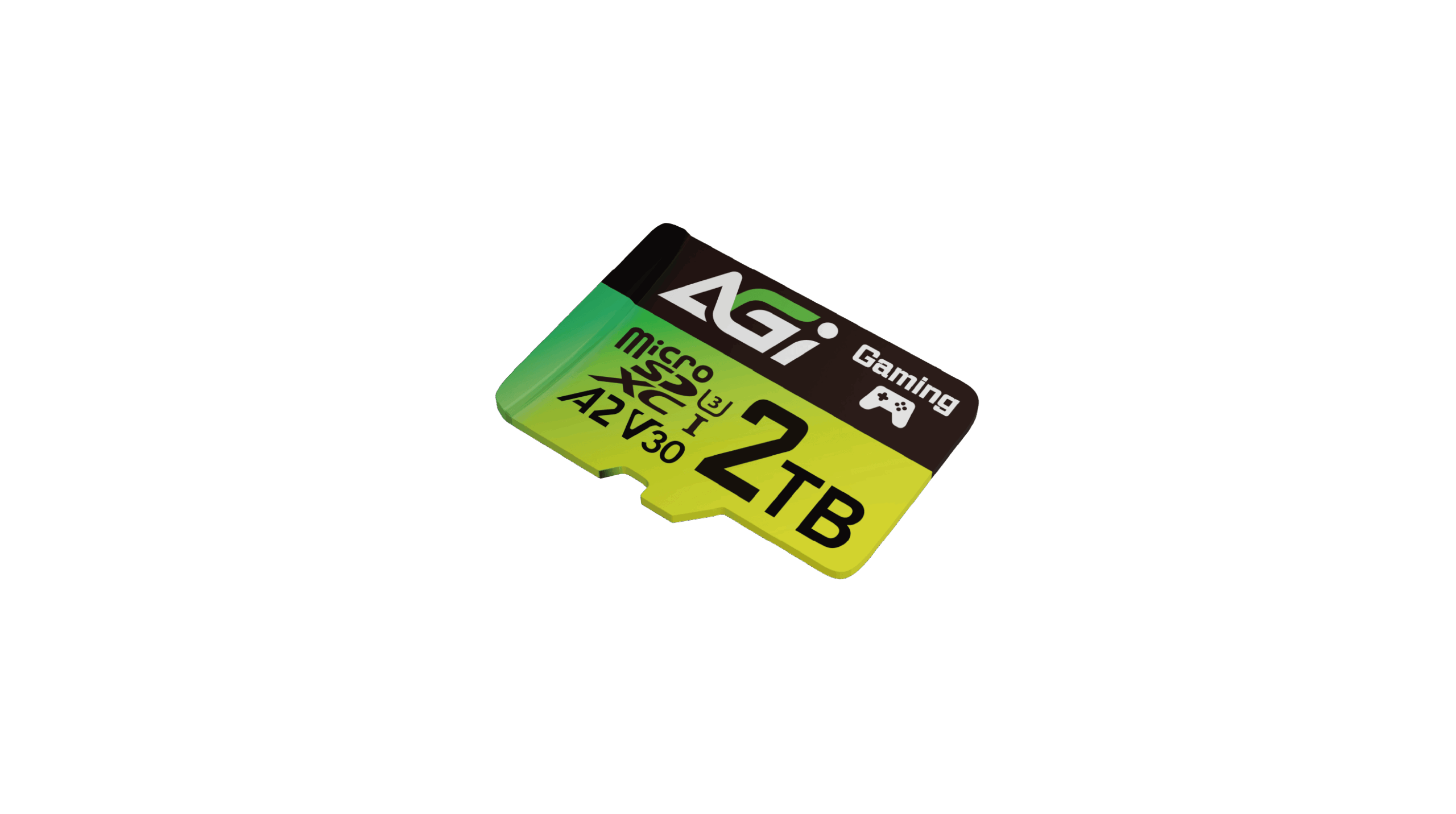
Supreme Pro TF138 microSD記憶卡
KEY FEATURES
- ➠ 全球唯一 2TB超大容量 microSD卡
- ➠ 搭配專用讀卡機讀寫可達 170/160 MB/s
- ➠ A2 V30支援4K UHD錄影及各種應用裝置

4K UHD

Camera

Action Camera

全球首款 2TB microSD,定義儲存新極限
- 超高速讀寫配合2TB超大容量,Supreme Pro TF138 開啟新的篇章。
多元應用
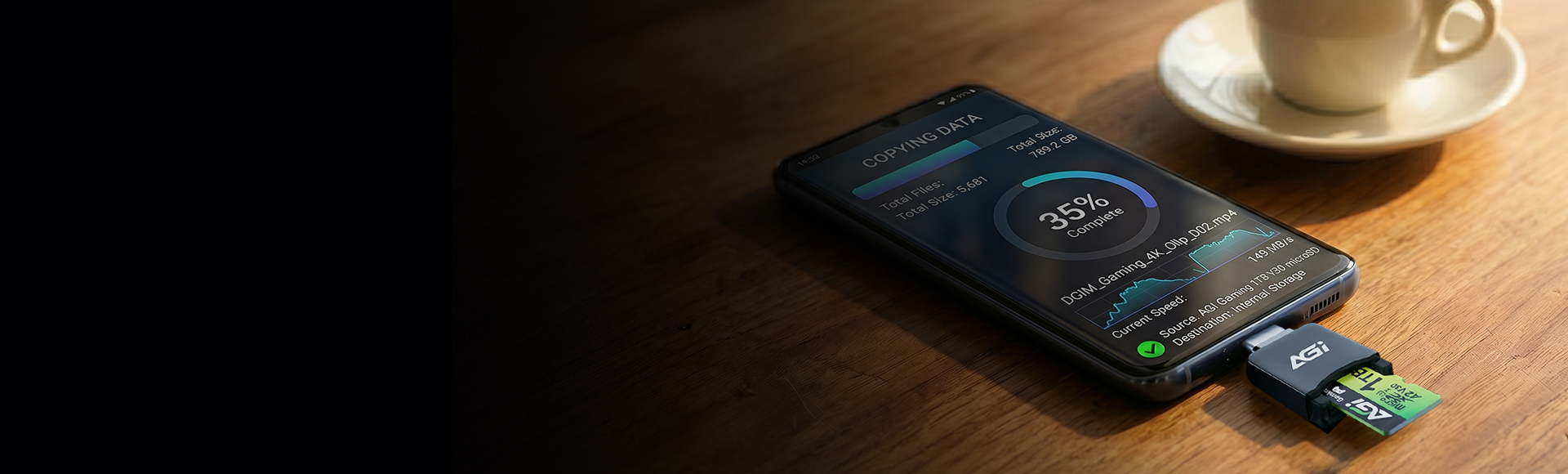
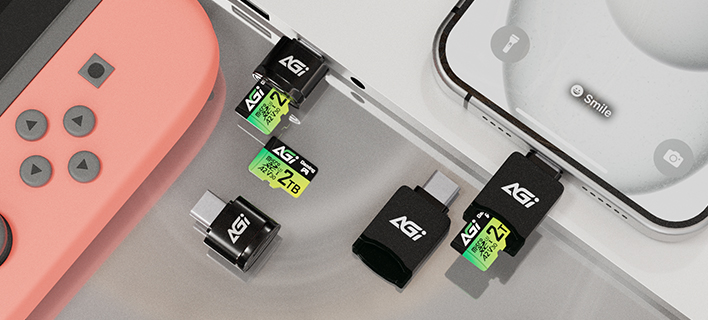
- 輕易搭配各式生活設備,包含手機、switch、行車紀錄器、運動相機、空拍機等等
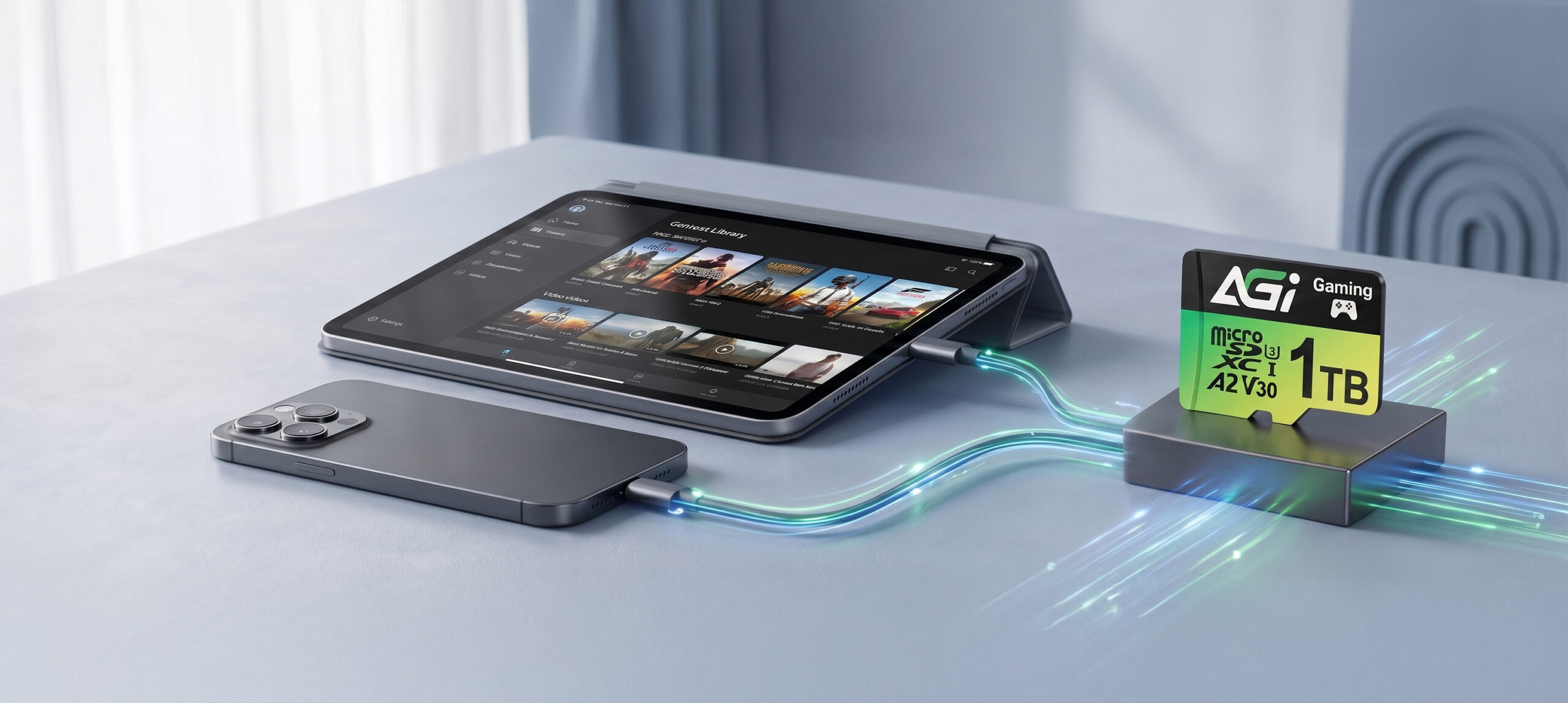
V30 speed class support 4K UHD recording.
Specifications
容量
128GB / 256GB / 512GB / 1TB / 2TB
標準
SD 6.1
速度規格
UHS-I U3 / V30 / A2
尺寸(L x W x H)
15 x 11 x 1mm
重量
0.25g
最高讀寫速度
170/160(128GB: 110) MB/s * 此為內部測試數據,需搭配專用讀卡機,實際速度可能因環境、設備而有所不同
安規認證
CE, FCC, BSMI, RoHS
有限保固
5年

Product FAQ
請嘗試使用其他讀卡機或裝置進行格式化。若問題依然存在,請使用 SD Formatter工具: https://www.sdcard.org/downloads/formatter_4/
速度等級(如 Class 10、U3 或 V30)代表記憶卡的最低持續寫入速度,這對於影片錄製非常重要。如需了解所有標準的完整說明,請參閱 SD 協會官方網站: https://www.sdcard.org/developers/sd-standard-overview/speed-class/
請檢查 SD 轉接卡側邊的防寫保護開關。若開關被設定在「Lock (鎖定)」位置,只需將其推至解鎖位置即可。
請確認記憶卡已確實插入讀卡機中。請嘗試將讀卡機連接至電腦上的其他 USB 連接埠;若問題依然存在,請在其他電腦上測試該讀卡機,以確認其是否能正常運作。
傳輸速度會受到您裝置硬體(包含讀卡機與 USB 連接埠規格)的影響。此外,檔案的大小與數量也會影響速度;傳輸大量的小檔案,通常會比傳輸單一的大檔案來得慢,且速度較不穩定。
Explore Related Knowledge